Animating the Primary Pass Route
In OnChalk you mark one route as the primary pass target, press play, and the animation carries the ball there, so your players watch the read instead of just reading about it.
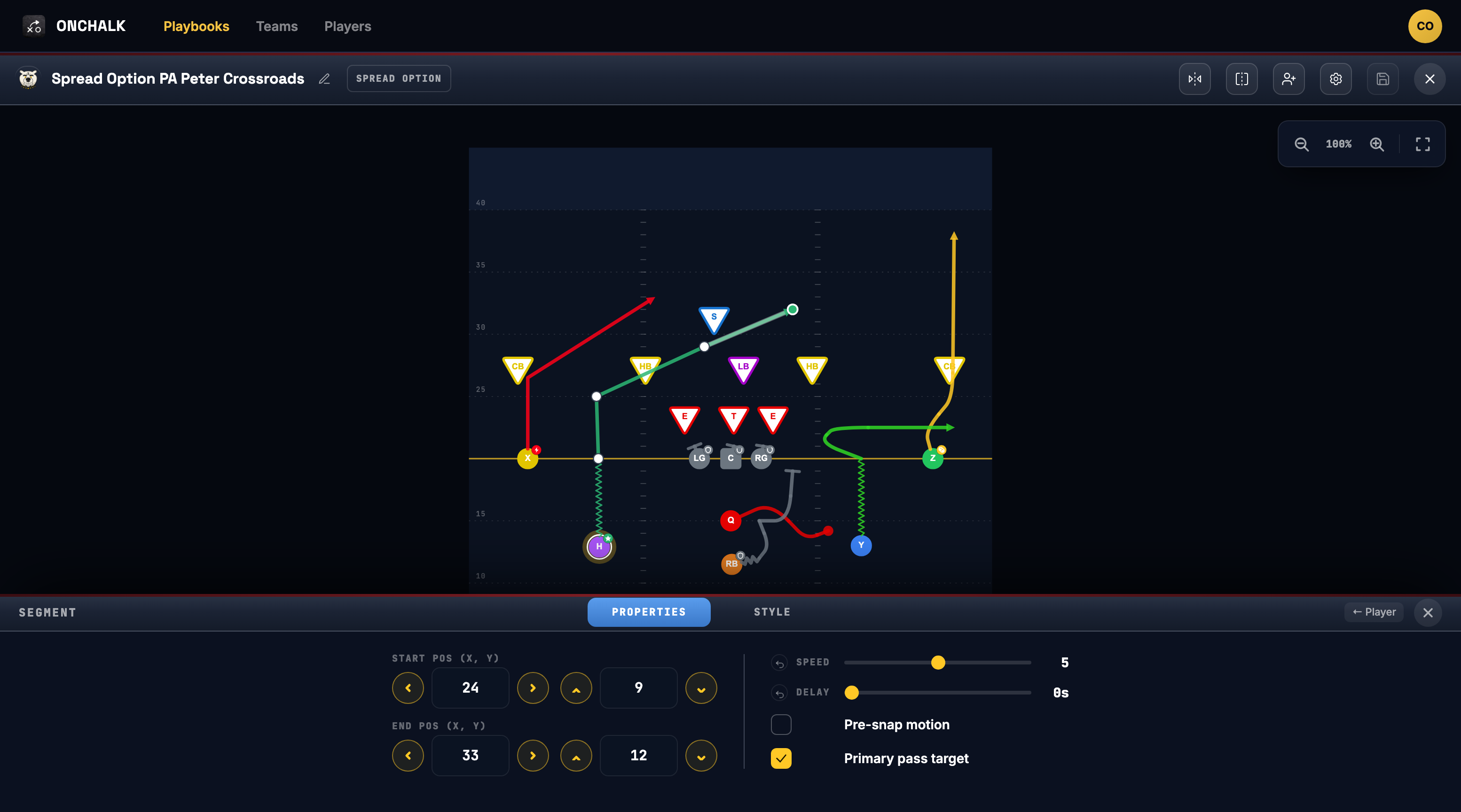
The target is a property of the route, so you set it on the route itself, not on the player. Click the last part of the route to select that segment, then open Properties.
Pick the route that gets the ball
On this play, the H receiver runs a crossing route underneath the play-action fake. That crosser is the read, so it is the route that should carry the ball. Click the last part of the route, the final segment ending at the catch point, to select it.
Check Primary pass target
With the segment selected, open Properties in the toolbar. Turn on Primary pass target. That one checkbox marks where the ball is delivered, and the receiver picks up a small star so you can see the target at a glance on the field.
Press play and watch the throw
Hit Play animation. Everyone runs their assignment in time, the quarterback carries out the fake, and the ball travels to H right where the route ends. Your players see the concept the way it happens on Saturday: the fake, the crosser coming open, and the throw that finds him.
Where to start
Open any pass play, click the route you want to feature, and check Primary pass target. Then press play. It is the fastest way to turn a diagram into something your players can watch and remember.
New to plays? Start with How to Create a Play in OnChalk.