
Playsheets and Paper Plays
Sooner or later a play has to leave the screen and land on paper, a call sheet in your hand, an install for a binder, a stack of plays for Saturday. OnChalk gives you two ways to do it: a Playsheet you build once and reuse, and Quick Print for when you just want plays on a page right now.
Both print from inside the playbook. Playsheets is a tab of its own, next to Plays, Formations, Wristbands, and Call Sheets. Quick Print is the Print button up in the toolbar, and it’s there on every tab.

Playsheets: build it once, print it all season
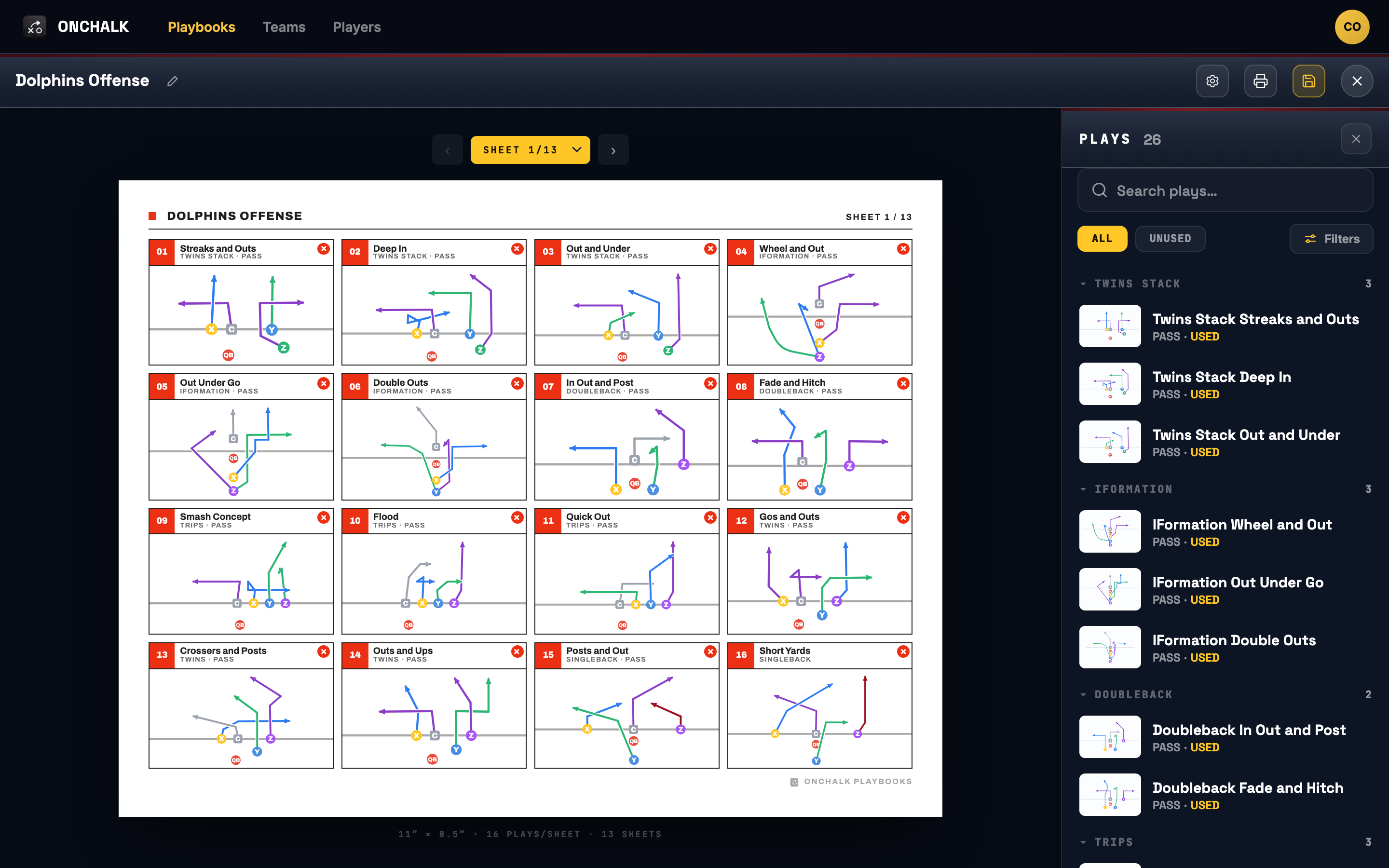
A Playsheet is a saved document. Open the Playsheets tab, hit New playsheet, and choose how it lays out: portrait or landscape, and how many plays go on a page, 1, 2, 4, 16, or 24. One play per page is a teaching sheet; sixteen or twenty-four is a full call sheet. Add as many pages as you need and give it a name.
Fill it from your play list
Tap a cell and the plays panel opens alongside the sheet. Search for a play or filter to Unused so you only see what you haven’t placed yet, then drop it into the cell. The panel tags every play Used as it lands, so you can see at a glance what’s left. In Display you pick what each cell shows, the thumbnail, play name, formation, a defensive look, the category, and the number.
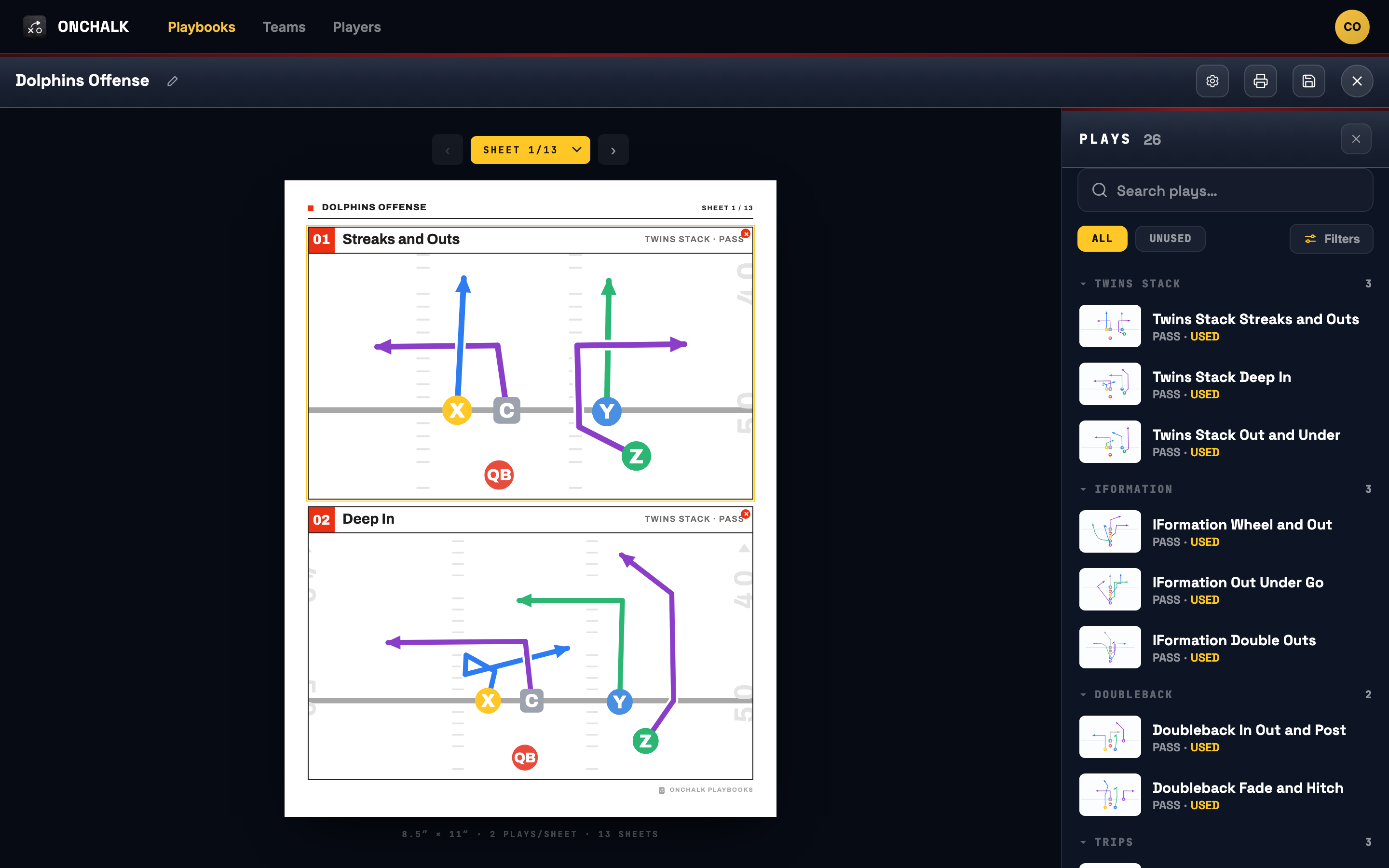
Because a Playsheet lives in the playbook, it’s there next week. Reopen your game-day sheet, swap a few plays, and reprint. You’re not rebuilding the same call sheet every Friday night.
Quick Print: plays on a page, right now
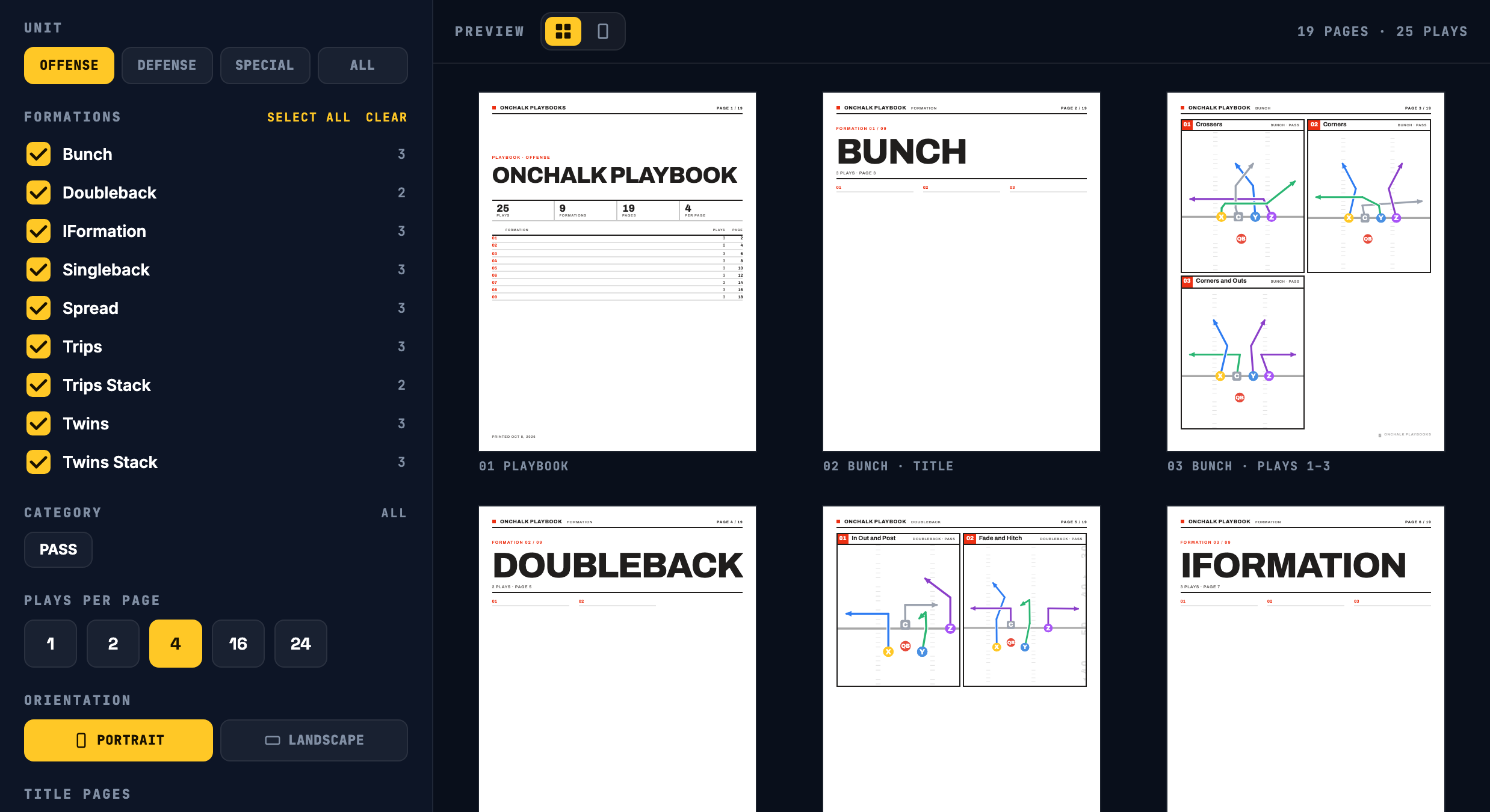
Sometimes you don’t want to build and save anything, you just want to print. Hit Print in the toolbar and Quick Print opens over your playbook. Pick a unit (offense, defense, special teams, or all), check the formations and categories you want, choose plays per page and orientation, and the preview builds as you go. Nothing gets saved; it’s a one-shot print straight from the plays you already have.
Turn it into a real booklet
Quick Print groups your plays by formation automatically and can number them within each. Turn on title pages and it adds a playbook cover with a contents list and page numbers, plus a divider page for each formation, so what comes out of the printer is an organized booklet, not a loose stack. When it looks right, hit Print and save a PDF or send it to paper.
Preview every page before you print
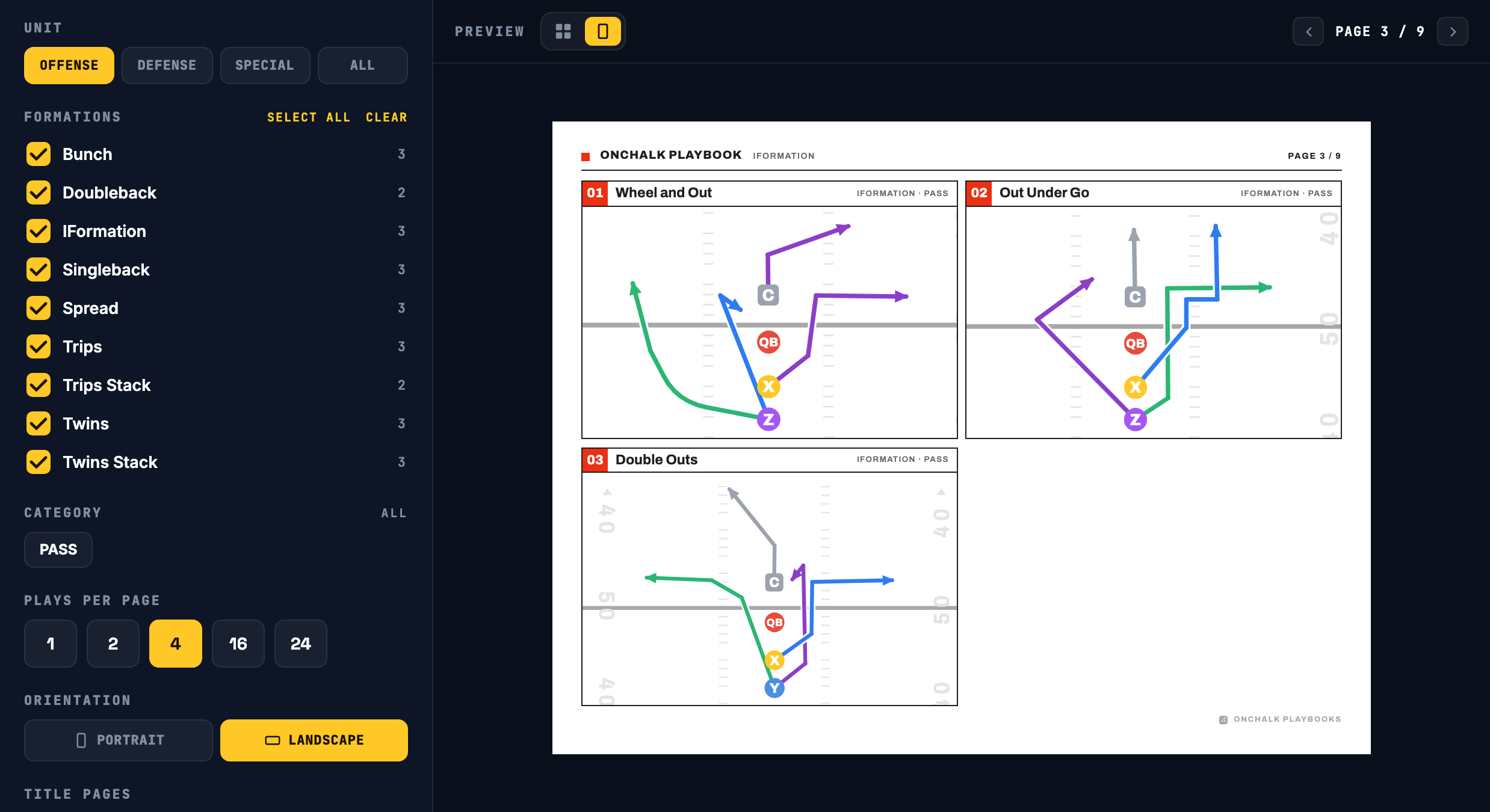
The preview isn’t just a thumbnail. Stay in the all-pages grid to see the whole booklet at a glance, or switch to single-page view and page through it one sheet at a time with the pager. Want it leaner? Turn the title pages off and set the plays per page and orientation you like — four to a landscape page makes a tidy call sheet with no cover or divider pages.
Reach for a Playsheet when it’s a document you’ll use again, your game-day call sheet, a weekly install. Reach for Quick Print when you just need these plays on paper once and you’re done.
Where to start
Want something you’ll reuse? Open Playsheets, build your game-day sheet, and keep it all season. Just need a quick copy? Hit Print from any tab, filter to what you want, and print. Either way your plays are off the screen and in your hands.
Want plays in your players’ hands too? See Wristbands in OnChalk.